
Getting Started with Workspace Studio in Education

Updated: Mar 1
Please note - Workspace Studio is new name for Workspace Flows - it's launching to all Education Fundamentals, Standard, and Plus users in the coming weeks.
Rapid Release domains: Admins will see settings appear in the Admin console at the same time their end users get access to Workspace Studio; this rollout will be gradual starting December 3, 2025.
Scheduled Release domains: Admin console settings will roll out gradually starting December 3, 2025; end user access to Workspace Studio will roll out gradually starting January 5, 2026.

Workspace Studio
What is it? Workspace Studio is an agentic automation feature within Google Workspace, powered by Gemini. It allows users with access to automate multi-step tasks across various Google applications, such as Docs, Sheets, and Gmail. By leveraging conversational prompts, Workspace Studio enables a new level of efficiency, transforming user requests into automated workflows. If you are new to Workspace Studio, there’s a great introduction video from Dean Stokes here.
How might this be used in Education? Below are five examples of Flows in Google Workspace to get you started. Note, as with all AI, you should follow the rules of your organisation when considering what to use with AI. Gemini has enterprise-grade privacy and security, and doesn’t use your data to train the model but you should always follow your own school guidelines for use.
Consider the examples below as a starting point, and tailor the prompts to meet your needs. In each example, we have kept the user in the loop, so while Gemini might help you draft a reply to an email, you are the one checking the content before sending it.
A simple flow to respond to emails that require a reply.
Trigger > This flow is triggered when a new email arrives.
Gemini > Gemini then decides if the email requires a reply (so this ignores marketing and information emails), and labels it "Needs Reply".
Gemini > Once the label is added, Gemini writes the reply and leaves it as a draft in your inbox.
User in the Loop > The output here is a draft email - which you can choose to send or edit. If you are using this flow, make sure you edit the message prompt to meet your own needs. The more detailed the prompt, the better the outcome.
Gemini Prompt>
Context: Act as [Name], [Job Title] of [Company Name]. Your goal is to draft a response to the email provided at the bottom that is professional, concise, and helpful. Rules & Formatting:

No Subject Line: Start the response directly with the greeting.

The Sign-off: End with "Thanks," followed by one empty line and then the name.

No Signatures: Do not include job titles, company names, or contact info at the bottom (these are handled by the email system).

The Meeting Link: IF the conversation is about scheduling a meeting, include this link: [Insert Link Here]. If no meeting is mentioned, do not include it.
A flow that responds to a specific email, with a reply in line with a school policy.
Trigger > The arrival of an email about the school uniform.
Gemini > Drafts a response in line with the school policy. Again, the response is a draft, so the user can check before sending. You could create a variety of specific agents to help staff respond to enquiries sent to the school.
User in the Loop > Again, the output here is a draft email, which you can choose to send or edit.
Gemini Prompt>
Draft a reply to this email regarding the school uniform policy. Use the provided document titled "Elm School Uniform Policy" as the reference for the policy details. The email is:

Elm School Uniform Policy: https://docs.google.com/document/d/1AlNC2sU-Q_95IAshoTETprwvw3yA8mcQyDpid9SNymE/edit?usp=sharing

Please ensure the reply is polite, informative, and directly addresses any questions or concerns raised in the parent's email while aligning with the policy. If no specific questions are asked, provide a general overview of key aspects of the uniform policy relevant to parents.
In this example, we have a form that parents can complete to request a leave of absence, which is then checked against the Department for Education Guidelines.
Trigger > A parent completes a Google Form to request absence. You'll need to make your own copy of this form here or connect your own.
Gemini > Looks at their inputs and compares them to the guidance on school attendance before suggesting a decision.
User in the Loop > The output here is a message in Google Chat, which provides Gemini's draft response to the parent. We avoided the send email response in this example, as we need to ensure the response is checked before sending.

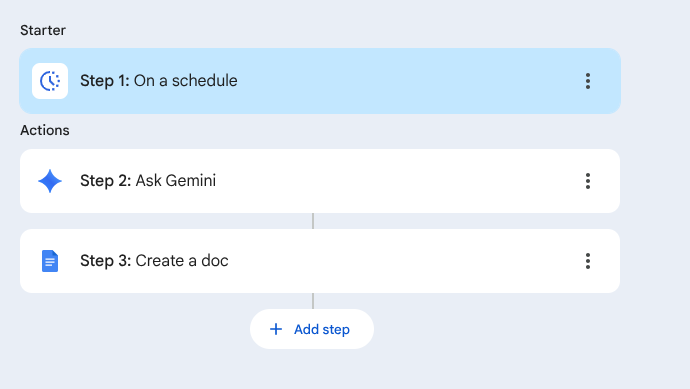
In this example, Gemini scans all your emails for the last week and uses that to write a draft school newsletter.
Trigger > Runs weekly on a Friday.
Gemini > Looks at your emails (especially any content sent by teachers that requested to have it added to the newsletter) to find content. You'll need to refine the prompt to match the style of your newsletter or bulletin. User in the Loop > The output here is a draft Google Doc (called Draft Newsletter). This provides Gemini's draft newsletter for checking.
In this example, when a file is added to a folder, Gemini scans it, removes the student's name, and creates a new file, keeping the log of the changes in a sheet. This enables teachers to share anonymised work with others. You'll need a copy of this sheet.
Trigger > File is added to a Folder
Gemini 1 > identified the Student Name
Gemini 2 > Checks to see if their name is also in the filename (as Google Classroom uses this)
Gemini 3 > Cleans the document text of their name
User in the Loop > The output (the new clean file) is added to a Google Sheet, along with the original file and the student's name.


Comments