
Interactive Learning Made Easy with Canva Code


Have you ever had a brilliant idea for an engaging, interactive activity for your learners but didn’t know where to start to bring it to life? Canva code is a new feature that makes creating interactive experiences quick and easy. You can create quizzes, drag-and-drop activities, games and more simply by describing your idea. No coding skills required, the AI will do the coding for you!
Getting Started with Canva Code
You can access Canva Code from your Canva homepage by selecting Canva AI then ‘Code for me’.

You simply need to describe your idea in the prompt box. Just like with any AI tool, it’s best to give it as much information as you can, including the type of activity, the topic, the target audience and any information about what should be included. For example, the items to include in a sorting activity.

If you’re not sure where to start, Canva has some great suggestions to help you, including:
Make an interactive historical timeline
Create an interactive flashcard game
Make a sorting activity for my class
Code a vocab matching game
Create a fun memory matching game
Code a 3D game exploring space
All you have to do is fill in the details for the specific topic you want to create the
activity for.
Iterating Your Design
Once the AI has created your activity you can try it out to check that it works exactly how you imagined. If you want to make any changes, your chat history will appear on the left so you can continue talking to the AI to collaboratively iterate.

While this window is open, you will not only see your chat history but also every version of the activity that has been created so it’s easy to review each version and pick the best one for using with your learners.

Sharing the Activity
Once your activity is ready, you can select the ‘Use in a design’ button. Like with any Canva design, you can then easily share it directly via a link and embed it in your learning platform.

Now that you know how to share your creations, let's explore some exciting ways you can use it.
Maximising Canva Code for Creative Learning
Canva Code opens up a realm of possibilities for creating dynamic and interactive learning experiences. Here are some ways you could use it in the classroom:
Interactive Lessons & Activities
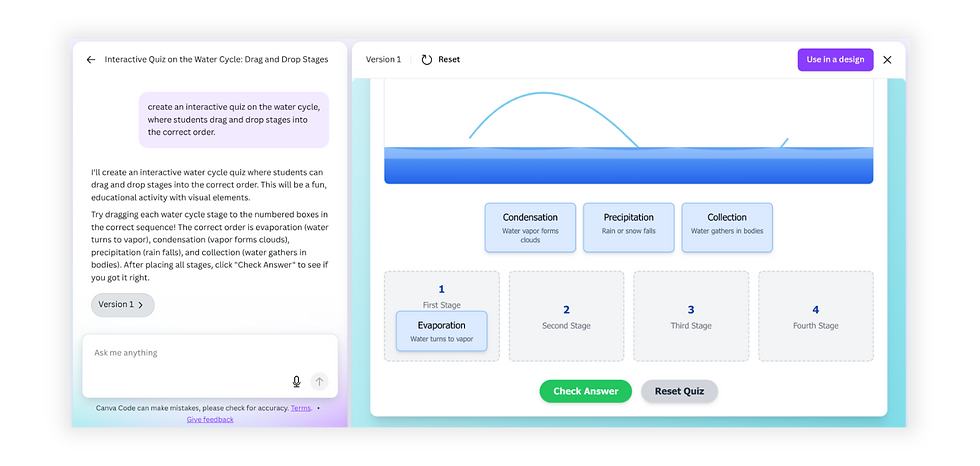
Design engaging activities that go beyond static worksheets. Create interactive quizzes, drag-and-drop exercises, or even simple simulations to make lessons more hands-on. For example, you could create an interactive quiz on the water cycle, where students drag and drop stages into the correct order.
Gamified Learning
Boost student motivation by incorporating game-like elements. Design educational games, puzzles, or challenges that reinforce learning in a fun and engaging way. You could design a history-themed escape room where students solve clues and puzzles based on historical facts.
Custom Learning Tools
Develop tools tailored to specific subjects or concepts. This could include calculators for maths, vocabulary flashcards for language learning, or interactive timelines for history. For example, you could develop a times tables practice tool where students input their answers and receive instant feedback.

Student Projects & Creation
Empower students to become creators themselves. Assign projects where students use Canva Code to design interactive demonstrations of their understanding.
Top Tips for Using Canva Code Effectively

Start with Clear and Specific Prompts
When prompting Canva Code, be as detailed as possible about the type of interactive element you want to create. For example, instead of saying "create a quiz," try "create a multiple-choice quiz about the capital cities of European countries with four answer options per question and provide feedback on whether the answer is correct or incorrect." The more specific you are, the better the AI can understand your needs and generate relevant code.

Iterate and Refine
The first output from the AI might not be exactly what you envision. Don't be afraid to iterate on your prompts and refine the generated code. You can provide additional instructions or ask the AI to modify specific aspects. This iterative process will help you achieve the desired outcome. For example, if the initial quiz generated by the AI has too few questions, you can prompt it to "add five more questions on the same topic."

Focus on Educational Goals
While the novelty of AI-generated interactive elements can be exciting, always keep your pedagogical goals in mind. Ensure that the activities you create align with your learning objectives and provide meaningful engagement for your students. Think about how the interactive element will enhance understanding, reinforce concepts, or assess learning in a new way.

Test and Review Thoroughly
Just like any educational resource, it's crucial to test the AI-generated interactive elements before using them with your students. Check for accuracy, functionality, and user-friendliness. Ensure that the interactive works as expected on different devices and that the instructions are clear for your students.
Canva Code is an easy-to-use new tool to help you create dynamic, interactive learning experiences that truly engage your students. It empowers you to create engaging and memorable learning experiences with ease, saving you time and opening up new possibilities for student engagement.


Comments